Know which block-world game is running
The page called The Minecraft free game opens Mineworld. Its title screen explicitly says that it is not Minecraft and is not affiliated with it. The embedded build identifies itself as version 1.2. This is a separate browser game to explore, rather than an official account service, server browser or mod installer.
Choose Play to reach world selection. The screen provides Flat and Difficulty options beside Create New World, with Flat initially off and Difficulty initially Normal in the verified opening. Inspect the visible setup before creating a world, and read any changed setting on its own terms rather than importing expectations from another block game.
A newly created world shows terrain, trees and water from a first-person view. The interface has a central crosshair, a red status bar and a row of block slots. A sword appears in the character's hand. These observations describe the loaded build; they do not establish every crafting, building or combat feature associated with another title.
Learn the starting area before travelling farther
Look around a small area first. Notice height changes, the nearest water and a tree or bank that you can recognise again. A short exploratory route gives you a reference for understanding direction and distance without making the first return unnecessarily confusing.
Use the game's displayed prompts to learn movement and interaction. Do not assume that a familiar block-world shortcut performs the same action here. Test one input where its effect is easy to observe, then decide whether it changes the view, the character's position or an interaction with the environment.
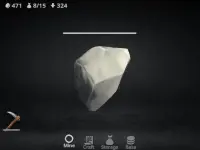
Counters in the upper-left area refer to the day and killed zombies, indicating a survival theme alongside the block setting. Read them while exploring, but do not infer a complete progression system from the labels alone. Let the current game demonstrate what changes after an action or event.
Understand the menu before leaving a world
The in-game prompt identifies Tab as the menu key. The Pause menu contains Back to Game, Reset World, and Save and Quit to Title. These actions have different purposes, so choose the one that matches what you intend to do with the current session.
Returning to play preserves the immediate activity, while resetting is a separate decision. The save option should not be read as a promise of cloud storage, account synchronisation or transfer to another device. Check the behaviour of this browser build rather than assuming that a saved session has the same portability as a different game.
Separate exploration from assumed features
Before setting a goal, identify an action or destination that the loaded build actually supports. Recognising a terrain feature, learning the pause controls and returning to the starting area are useful early tests. They provide a dependable reference for later exploration without inventing recipes, servers, downloadable modifications or official content.
The completed Adventure category offers broader journeys, while the 3D category provides other spatial environments. Return to Mine when a block-world theme appeals to you, and judge every selected card by its actual title screen, instructions and visible objective.
A landmark is most useful when you can recognise it from more than one direction. Before walking beyond the opening area, turn back and compare the view toward your starting point. That small check helps separate unfamiliar scenery from an actual change in the world and gives the next short exploration a clearer boundary.